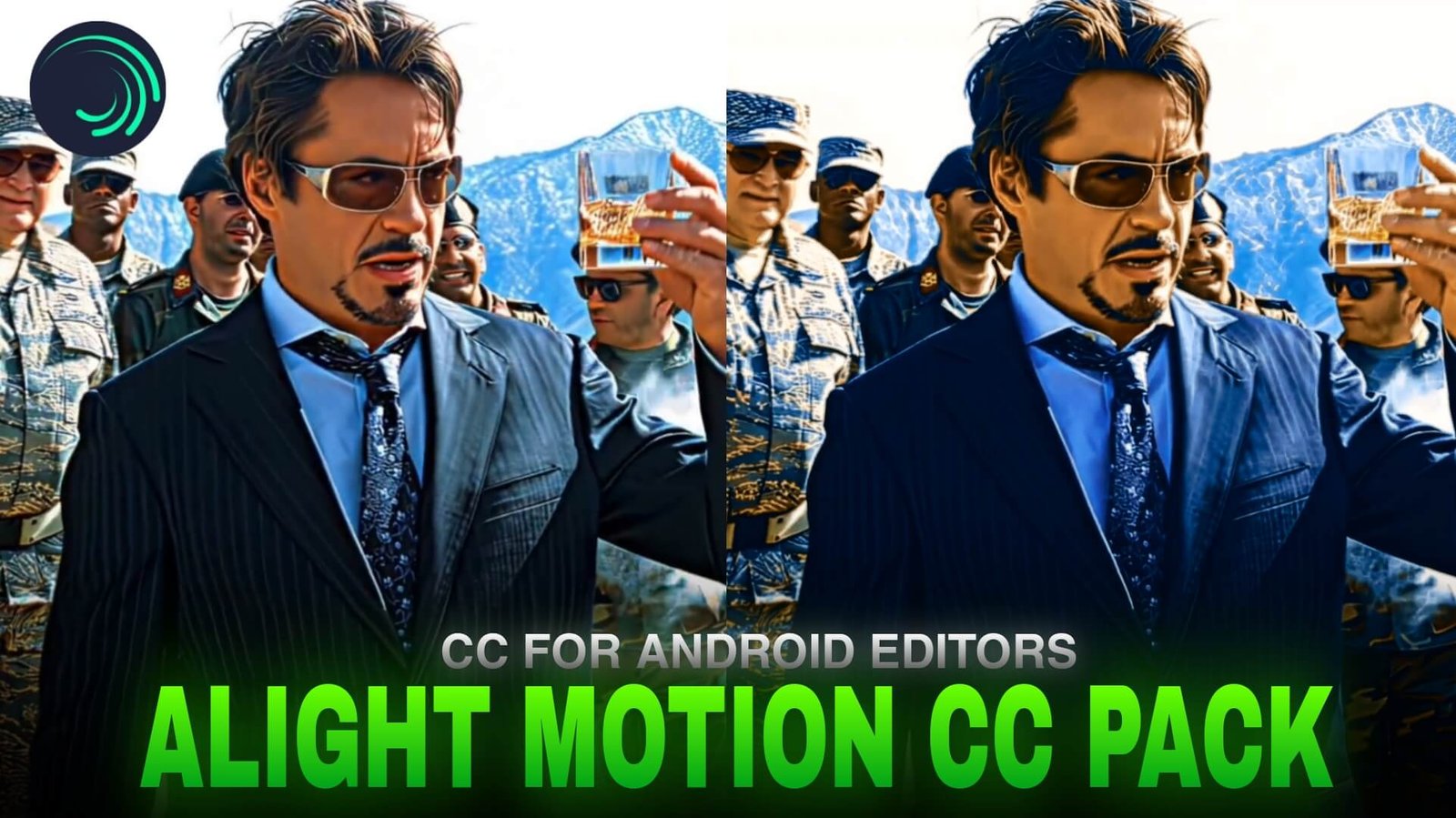
CC Pack for Alight Motion: Before & After Color Comparison
CC 1
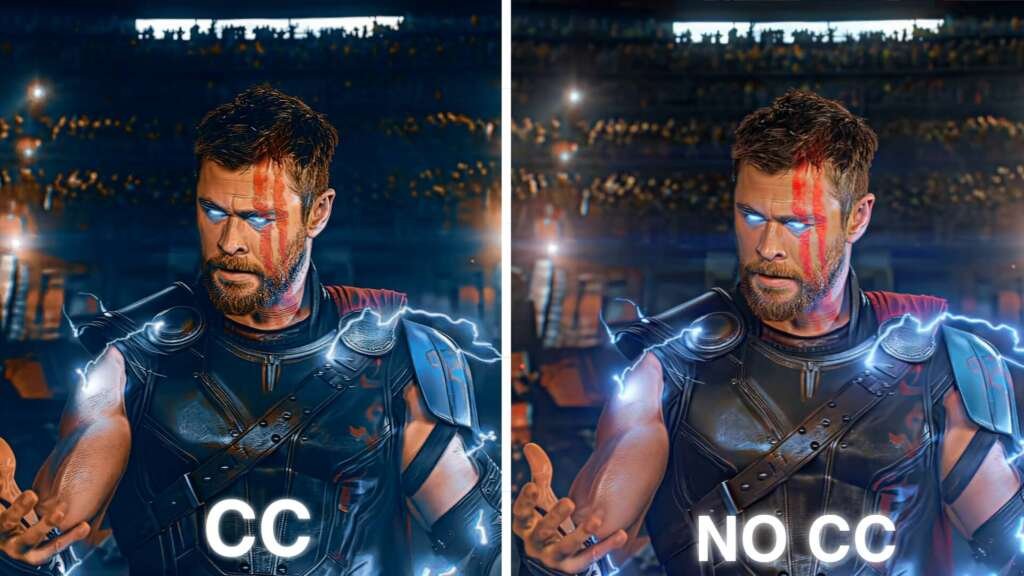
Main CC for File – LINK
CC 2
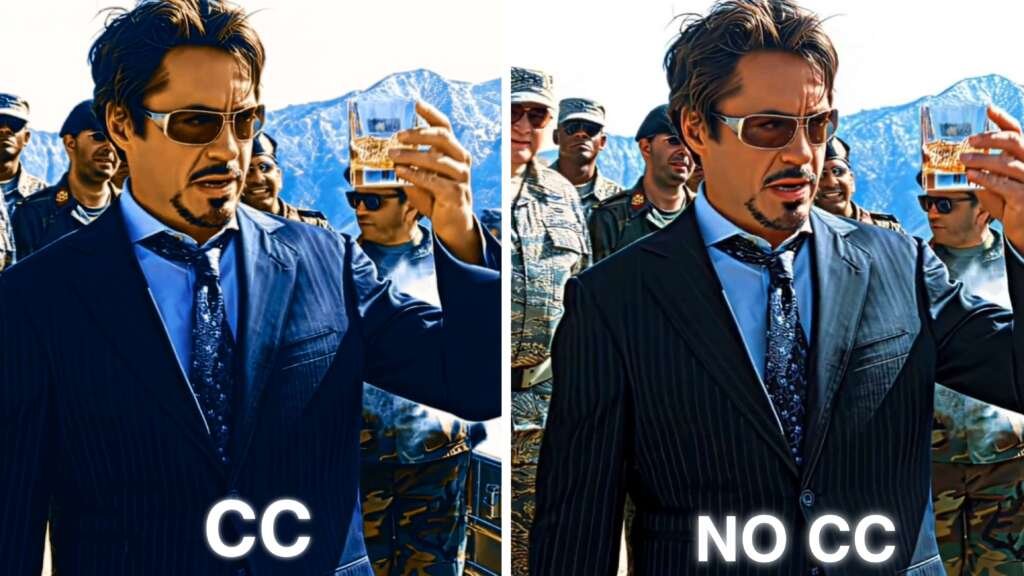
CC File – LINK
CC 3
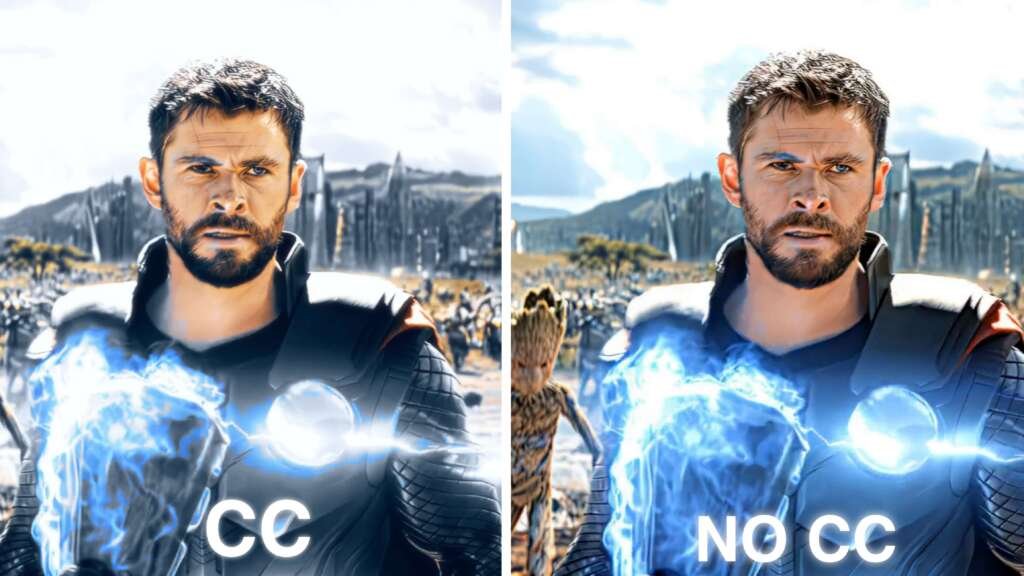
CC FILE – LINK
CC 4
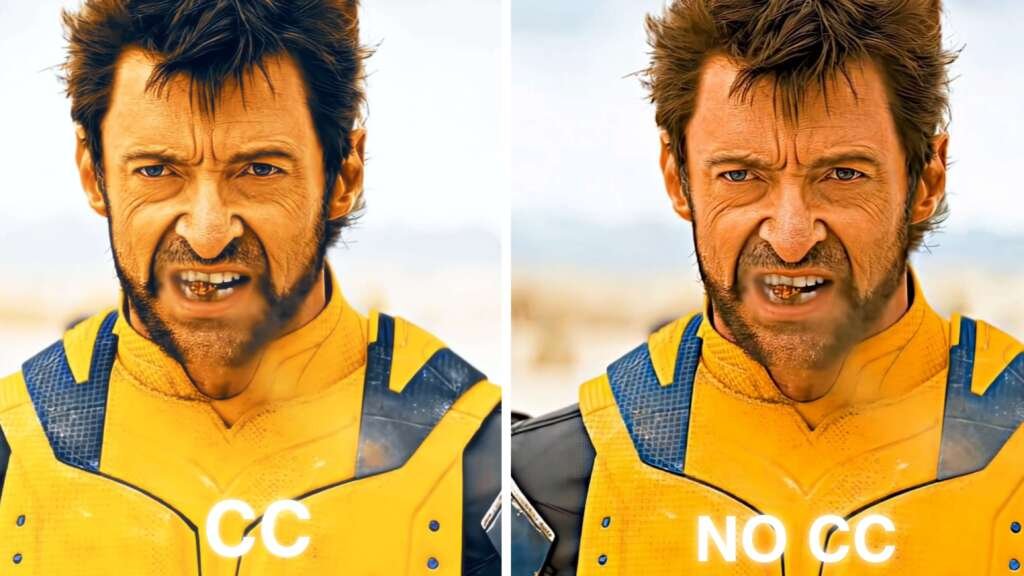
CC FILE – LINK
CC 5
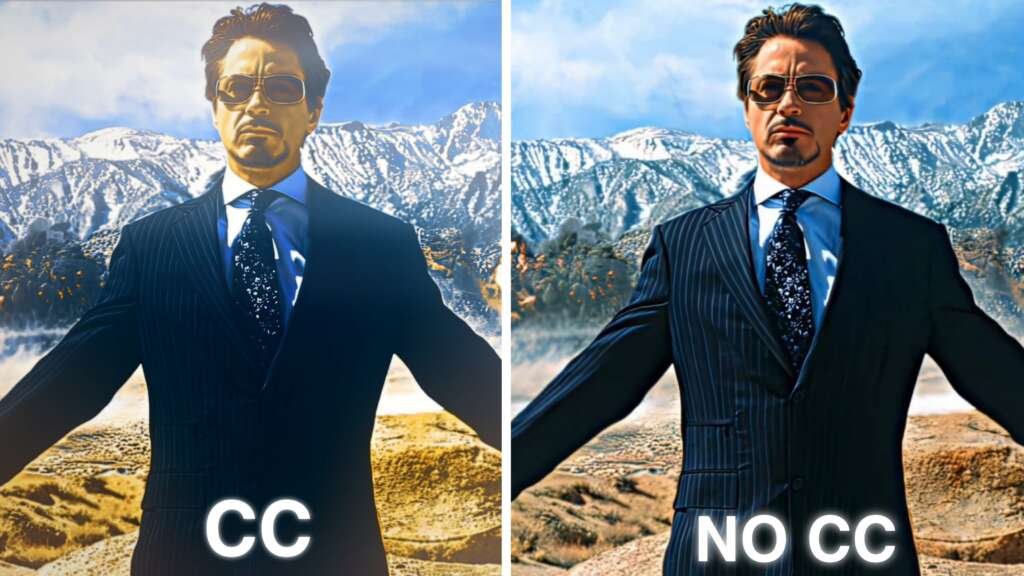
CC FILE – LINK
ALIGHT MOTION CC FOR ANIME EDITORS
CC 1
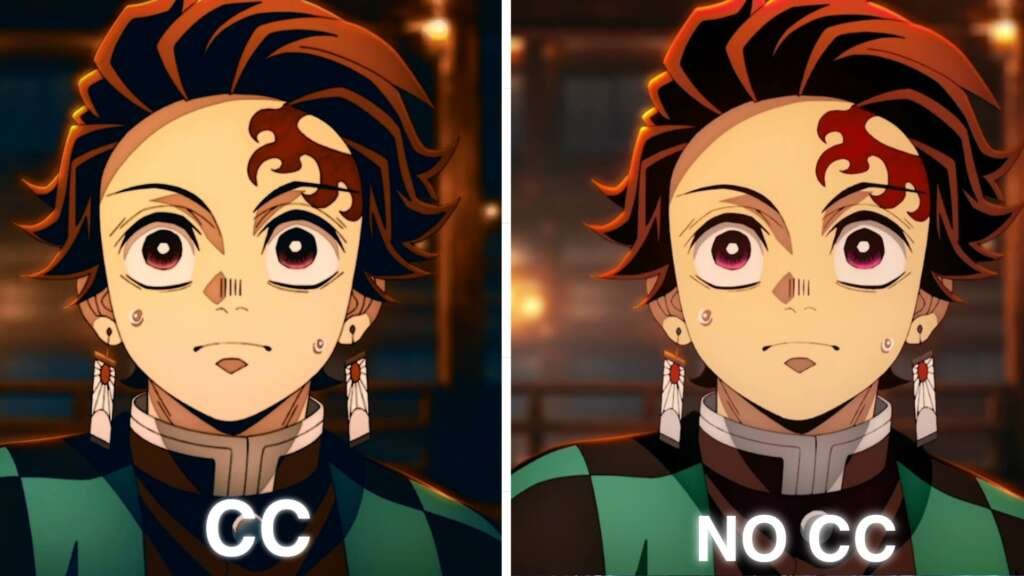
Main CC for File – LINK
CC 2
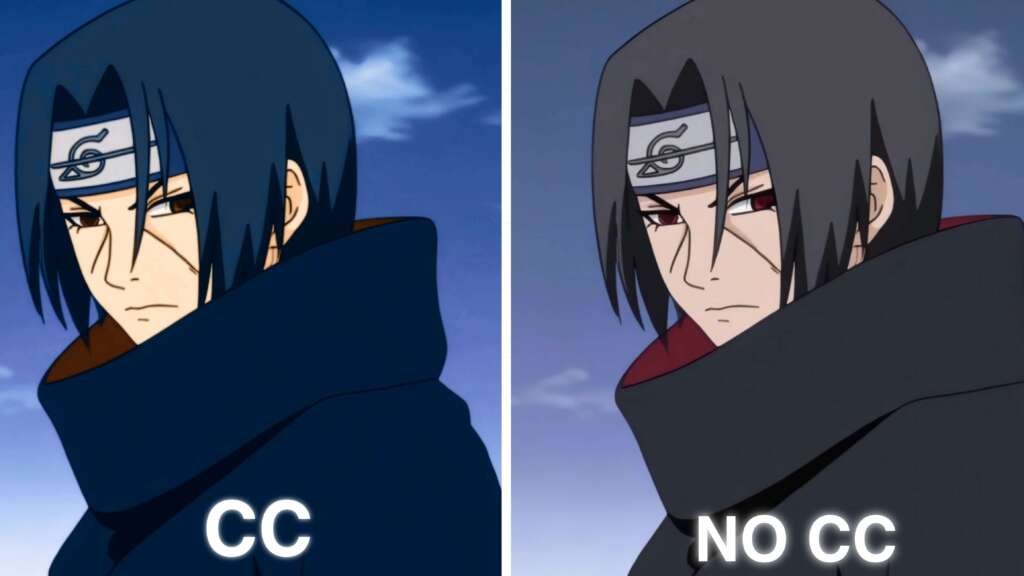
CC File – LINK
CC 3
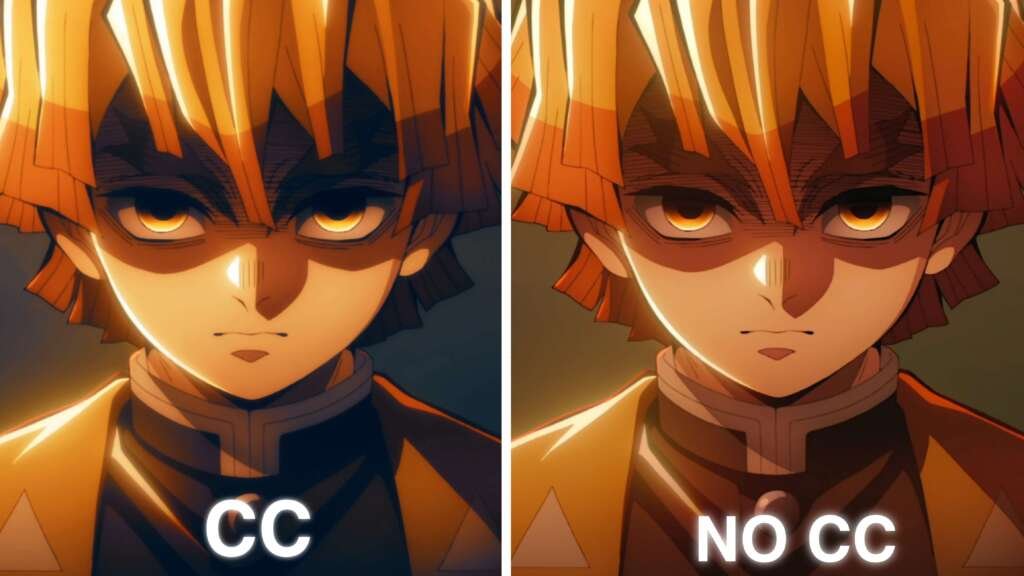
CC FILE – LINK
CC 4
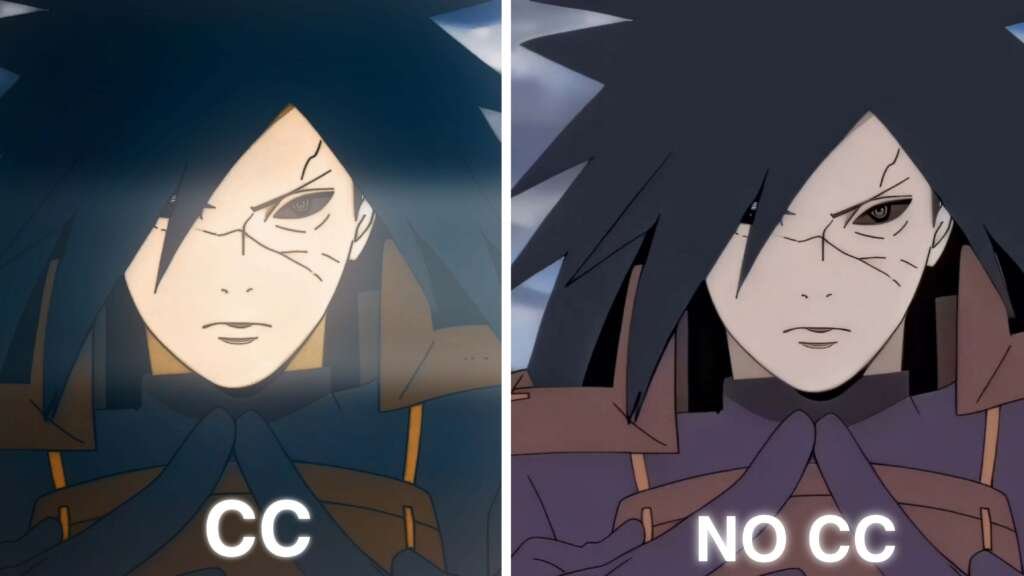
CC FILE – LINK
CC 4
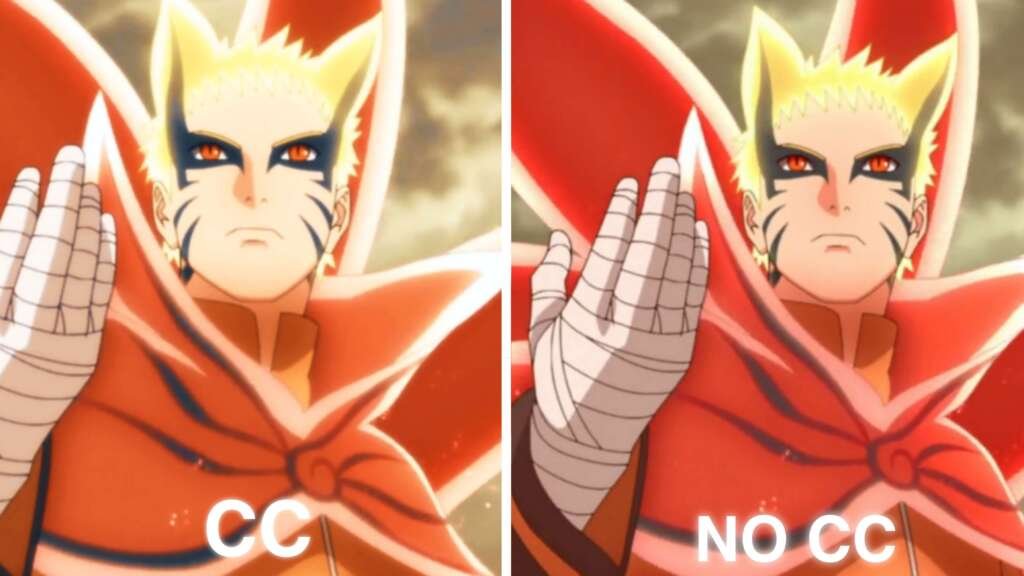
CC FILE – LINK
A good anime edit is not only about transitions, velocity, or effects. Color correction can completely change how a scene feels. The right contrast, saturation, brightness, and color balance can make ordinary footage look sharper, deeper, and more cinematic.
That is where a CC pack for Alight Motion can become useful. Instead of manually adjusting every color setting from the beginning, editors can use a prepared color setup and then make small changes according to the footage.
In this guide, we are showing a simple before-and-after comparison so you can see how color grading can change the appearance of an anime scene.
What Is a CC Pack for Alight Motion?
CC generally refers to color correction or color grading.
A CC setup can contain different adjustments designed to change the overall appearance of footage. Depending on the style, it may increase contrast, improve colors, change highlights and shadows, or create a specific cinematic mood.
For anime editing, CC is particularly useful because different scenes can have very different lighting.
A dark fight scene may need stronger contrast, while a bright outdoor scene may benefit from softer adjustments.
A CC pack for Alight Motion gives editors a starting point instead of forcing them to build every color combination from zero.
Before Applying CC
The original anime footage is the starting point.
Depending on the episode or scene, the footage may look slightly flat, bright, dark, warm, or washed out. That does not necessarily mean the source is poor. Anime already contains its own carefully designed color palette.
The goal of CC should therefore be to enhance the scene rather than completely destroy its original appearance.
[INSERT BEFORE IMAGE HERE]
Before: Original anime footage without the CC applied.
When comparing the original image with the edited version, pay attention to the character’s skin tones, clothing, background, highlights, shadows, and overall contrast.
After Applying the CC
Once the CC is applied, the same frame can have a noticeably different appearance.
[INSERT AFTER IMAGE HERE]
After: The same scene with the CC applied in Alight Motion.
The difference may be subtle or dramatic depending on the selected CC. A useful color setup can make important details stand out while giving multiple clips a more consistent appearance.
This is especially helpful when several anime scenes from different episodes are being combined into one edit.
Before vs After: What Changes?
The easiest way to understand a CC is through a direct comparison.
1. Contrast
Contrast controls the difference between darker and lighter parts of an image.
Increasing contrast can make an anime scene feel stronger and more dramatic. However, pushing it too far can remove details from shadows and bright areas.
2. Saturation
Saturation affects the intensity of colors.
A small increase can make anime backgrounds, clothing, energy effects, and character designs appear more vibrant.
Too much saturation can make the scene look unnatural.
3. Brightness
Brightness changes the overall lightness of the image.
A dark scene may require a slight brightness adjustment, while a naturally bright scene might need less exposure.
4. Highlights and Shadows
These adjustments can help control bright and dark areas independently.
For example, reducing highlights can preserve details in bright energy effects, while adjusting shadows can reveal information in darker parts of the frame.
5. Color Tone
Some CC styles introduce warmer or cooler tones.
A cooler look can work well with nighttime or dramatic scenes, while warmer tones may suit emotional, sunset, or action sequences.
Why Use CC in Anime Edits?
Color grading becomes particularly important when your edit contains multiple scenes.
Imagine an edit that includes five different clips. Each clip may have slightly different lighting and colors.
Without correction, the transitions can feel inconsistent.
A carefully selected CC pack for Alight Motion can help bring those clips closer together visually.
This does not mean every scene should receive exactly the same settings. The CC should be treated as a foundation that can be adjusted for individual clips.
For editors working on smooth anime projects, combining color work with appropriate project settings is also important. Our guide on Best Alight Motion Settings for Smooth Anime Edits covers resolution, frame rate, motion blur, velocity, and export considerations.
Before and After Comparison
Here is the easiest way to judge whether a CC is actually helping your edit:
Original Footage
[IMAGE A – BEFORE]
Look at the original colors and identify areas that appear flat, too bright, too dark, or lacking contrast.
CC Applied
[IMAGE B – AFTER]
Now compare the same frame after applying the CC.
Instead of only looking at the overall image, compare specific areas:
- Character face
- Hair
- Clothing
- Background
- Bright effects
- Dark areas
- Overall contrast
- Color intensity
This type of side-by-side comparison makes it much easier to understand what the CC actually changes.
How to Use a CC Pack in Alight Motion
The exact process can vary depending on how the CC has been created and shared, but the general workflow is straightforward.
Start by opening your Alight Motion project and importing your anime footage.
Next, add the required CC or color settings according to the pack’s instructions.
After applying it, preview the scene.
Do not immediately assume that the CC will look perfect on every clip.
Different anime scenes have different exposure and color palettes, so small adjustments may be necessary.
You might need to modify brightness, saturation, contrast, or other settings until the footage looks balanced.
Don’t Overdo the Coloring
One of the most common mistakes in anime editing is using too much color correction.
A strong CC can make an edit look impressive, but excessive contrast, saturation, sharpening, or glow can make the animation lose its natural appearance.
The best result is not necessarily the most dramatic one.
Try switching the CC on and off while previewing the same frame.
Ask yourself:
Does the CC improve the scene, or does it simply make the colors stronger?
That simple comparison can help you avoid over-editing.
CC Works Even Better With Clean Editing
Color correction is only one part of an anime edit.
A polished project can combine CC with:
- Smooth velocity
- Controlled zooms
- Motion blur
- Camera movement
- Beat synchronization
- Clean transitions
- Sharpening
- Subtle glow
However, effects should support the footage instead of covering it.
A clean edit with balanced coloring can often look better than a project overloaded with effects.
Try the CC on Different Anime Scenes
A CC that looks excellent on one scene may not look exactly the same on another.
For example, a dark Jujutsu Kaisen fight, a colorful One Piece sequence, and a Blue Lock football scene can all react differently to the same color settings.
Therefore, use the comparison method each time.
Apply the CC, compare the original frame with the edited frame, and make small adjustments where necessary.
This approach gives you more control than blindly applying the same settings to every clip.
Where to Get the CC Pack
If you want to try the CC shown in the comparison, you can access the pack through the link provided below.
Get the CC Pack for Alight Motion: https://payhip.com/QualityCCLab
Before using the pack in a project, check the instructions included with it so you know how the settings are intended to be applied.
Final Thoughts
A good color correction can make a noticeable difference in an anime edit without changing the actual animation. The most useful way to judge a CC pack for Alight Motion is through a direct before-and-after comparison.
Look at the contrast, saturation, highlights, shadows, and overall color balance rather than simply choosing the version with stronger colors.
Use the CC as a starting point, adjust it according to the scene, and combine it with clean timing, smooth movement, and controlled effects. That approach gives you much more flexibility when creating anime edits for short-form videos, AMVs, and velocity edits.
Frequently Asked Questions
What is a CC pack in Alight Motion?
A CC pack is a collection of color correction or color grading settings designed to help editors change the appearance and mood of their footage.
Does a CC pack improve video quality?
A CC can improve the visual appearance of footage by adjusting colors, contrast, brightness, and other properties, but it does not replace the need for high-quality source footage.
Can I use the same CC on every anime clip?
You can, but the result may vary between scenes. It is usually better to make small adjustments depending on the original lighting and colors.
Is CC important for anime edits?
CC is not mandatory, but it can help create a consistent visual style when multiple anime scenes are combined into one edit.
Can I combine CC with other Alight Motion effects?
Yes. CC can be combined with effects such as motion blur, glow, camera movement, and velocity. The key is to keep the overall result balanced.
How do I know whether my CC is too strong?
Compare the edited frame with the original. If colors become unnatural, shadows lose detail, or bright areas become distracting, reduce the intensity of the adjustments.
Disclaimer: This article is provided for creative editing and educational purposes. Always follow the applicable rights, licenses, and platform policies when using source footage or editing resources.