LINKS
Get Exclusive CC & Quality Setting Here : https://payhip.com/QualityCCLab
GET EXCLUSIVE FREE TWIXTOR CLIPS
Get Anime Clips Raw For Free: https://twixtorclips.com/anime-raw-clips/
Exclusive Twixtor Clips For Free: https://twixtorclips.com
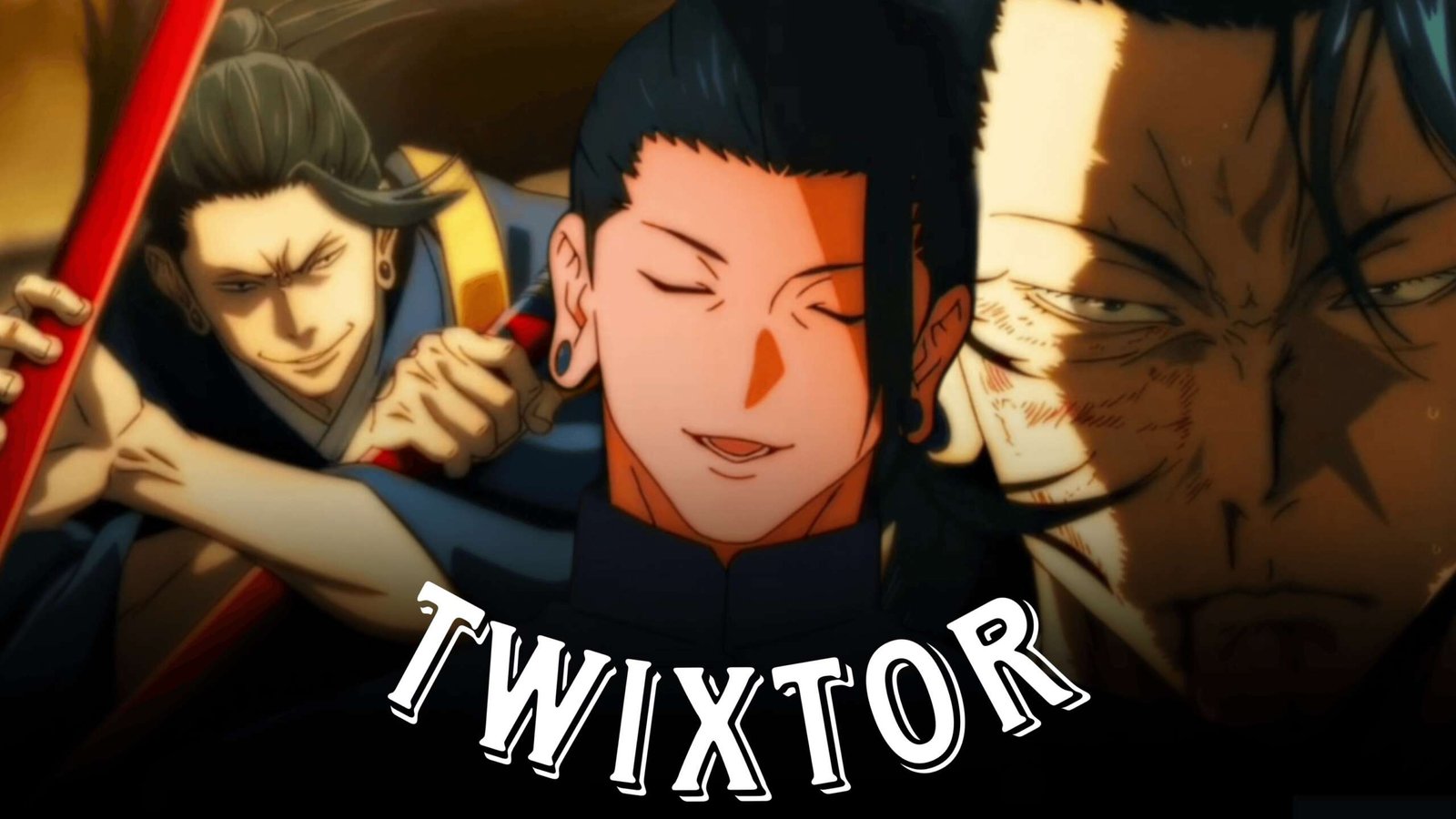
Geto Twixtor Clips: Best Suguru Geto Scenes for JJK Edits
Suguru Geto has a distinctive presence in Jujutsu Kaisen, making his footage useful for both character edits and action-focused montages. His composed expressions, cursed spirit techniques, battle sequences, and cinematic moments offer editors plenty of opportunities to experiment with slow motion, velocity, transitions, and visual effects.
Unlike a character edit that depends entirely on rapid combat, a Geto Twixtor Clips collection can combine calm character shots with sudden bursts of movement. This contrast can make the final edit feel more dramatic and controlled.
Editorial Note: This article is intended for video-editing inspiration and creative use. It does not host or distribute copyrighted anime footage.
What Makes Geto Footage Stand Out?
Geto’s scenes offer several different visual styles that can be separated into individual editing categories.
A useful collection can include:
- Geto close-ups
- Cursed spirit appearances
- Geto battle scenes
- Technique activation
- Walking sequences
- Character interactions
- Hand movements
- Dramatic expressions
- Action shots
- Cinematic backgrounds
- Story-focused moments
- High-impact attacks
This variety allows one scenepack to support completely different editing styles.
Geto Close-Ups for Character Edits
Geto’s facial expressions are particularly useful when creating a character-focused montage.
Instead of immediately starting with an action sequence, begin with a close-up and let the music build.
For example:
Close-up → slow zoom → expression change → beat transition → technique scene
Subtle motion blur and a controlled zoom can be enough to make these shots visually effective without covering them with excessive effects.
Cursed Spirit Manipulation Scenes
One of the most recognizable visual elements associated with Geto is his ability to control cursed spirits.
These scenes can create natural transitions because the visual focus changes from Geto to the summoned spirit.
Try building a sequence like:
Geto → hand movement → cursed spirit reveal → acceleration → attack → impact
The technique activation itself can serve as the transition point between two sections of an edit.
Geto Fight Clips
For a more aggressive montage, focus on scenes with clear physical movement.
Useful moments include:
- Punches
- Kicks
- Dodges
- Weapon movement
- Cursed spirit attacks
- Fast character movement
- Technique sequences
- Impact moments
When selecting clips for Twixtor, prioritize footage where the subject is clearly separated from the background. This can help reduce unwanted warping during slow-motion interpolation.
Geto Twixtor Editing Style
Geto footage can benefit from selective slow motion rather than slowing down every scene.
One possible pattern is:
Normal speed → slow motion → acceleration → impact → normal speed
Keep the normal-speed sections long enough to establish movement before introducing the speed change.
For example, a character turning toward the camera can remain at normal speed, while the following attack can be slowed down for emphasis.
Dark Geto Cinematic Edit
Geto also works well with darker cinematic edits.
For this style, focus on:
- Serious expressions
- Walking shots
- Shadowed scenes
- Cursed spirit sequences
- Quiet character moments
- Dramatic transitions
A slower soundtrack combined with restrained visual effects can create a more atmospheric result.
Instead of using a transition after every clip, allow some scenes to connect through similar camera movement or framing.
Music Selection for Get The music should match the type of Geto edit you are creating.
Dark Character Edit
Consider:
- Dark ambient
- Atmospheric electronic
- Slow trap
- Cinematic instrumentals
Fight Montage
Consider:
- Phonk
- Trap
- Aggressive hip-hop
- Drum-heavy electronic music
Cinematic Edit
Orchestral and emotional instrumental tracks can work well with slower character-focused footage.
Try to synchronize scene changes rather than every individual cut with the music. This usually creates a cleaner rhythm.
Color Grading Geto Clips
A consistent color grade can make footage from different scenes feel like part of the same project.
You can experiment with:
- Increased contrast
- Deeper shadows
- Controlled saturation
- Highlight reduction
- Subtle sharpening
- Film grain
- Mild vignette
For darker scenes, avoid lowering the exposure too much. Geto’s expressions and clothing details should remain visible.
Geto Edit Transition Ideas
Rather than relying on complicated presets, use movement already present in the footage.
Movement Match
End one clip with Geto moving in one direction and begin the next clip with similar movement.
Technique Transition
Cut when a cursed spirit or technique fills the frame.
Beat Cut
Use a major music hit to move from a close-up into an action sequence.
Speed Transition
Increase the velocity immediately before an impact, then return to normal speed afterward.
These techniques can make an edit feel connected without requiring excessive overlays.
How to Build a Geto Twixtor Clips Edit
A simple workflow can be:
Choose footage → isolate strong movements → arrange clips → create velocity → apply Twixtor selectively → add motion blur → synchronize music → color grade → export
Before applying Twixtor, inspect the footage at normal speed. Clips containing overlapping characters, complicated effects, or extremely fast camera movement may require more careful processing.
Geto Edit Ideas
Suguru Geto Character Montage
Combine close-ups, walking shots, expressions, and important character moments for a slower edit.
Cursed Spirit Montage
Use different cursed spirit sequences and connect them through technique activations.
Geto Fight Edit
Focus on combat movements and synchronize major attacks with the soundtrack.
Geto Dark Edit
Use darker grading, atmospheric music, slow camera movements, and dramatic close-ups.
Geto Speed Edit
Combine fast movement with carefully placed velocity ramps and Twixtor sections.
Geto Cinematic Edit
Mix environmental shots, character moments, technique scenes, and slower transitions to create a story-like montage.
Common Mistakes When Editing Geto
Avoid:
- Applying Twixtor to every clip
- Excessive velocity changes
- Overusing camera shake
- Excessive glow
- Too many flashes
- Over-sharpening
- Random transitions
- Extremely dark color grading
- Using clips with difficult motion interpolation
Geto’s calmer scenes can provide useful breathing room between high-energy sequences.
FAQ
What are Geto Twixtor Clips?
Geto Twixtor Clips are Suguru Geto-focused scenes that can be used for slow-motion, velocity, and anime editing projects.
Which Geto scenes are useful for Twixtor?
Clear movements such as attacks, walking, turning, hand movements, dodges, and technique sequences can work well when the footage has enough visual information for interpolation.
Can Geto Twixtor Clips be used for cinematic edits?
Yes. Close-ups, character interactions, technique scenes, and dramatic moments can be combined with atmospheric music and subtle effects for a cinematic edit.
What type of music works with Geto edits?
Dark ambient, cinematic instrumentals, trap, phonk, and atmospheric electronic music can all work depending on the mood of the edit.
Final Thoughts
Geto Twixtor Clips give editors a combination of controlled character movement, cursed spirit visuals, dramatic expressions, and action sequences. This makes Suguru Geto suitable for everything from dark character montages to fast-paced JJK fight edits.
Instead of treating every clip with the same effects, combine close-ups, technique reveals, movement-based transitions, selective Twixtor, and well-timed velocity changes. This gives the finished edit more variation and keeps the original animation visible.
Disclaimer
This article is for editing inspiration and informational purposes only. Jujutsu Kaisen and its characters are the property of their respective copyright holders. Use only footage you have permission or legal rights to edit and share.