LINKS
More Post Like This: https://twixtorclips.com/jujutsu-kaisen-season-4-trailer-twixtor/
Anime Twixtor Clips Available: https://twixtorclips.com/anime-twixtor/
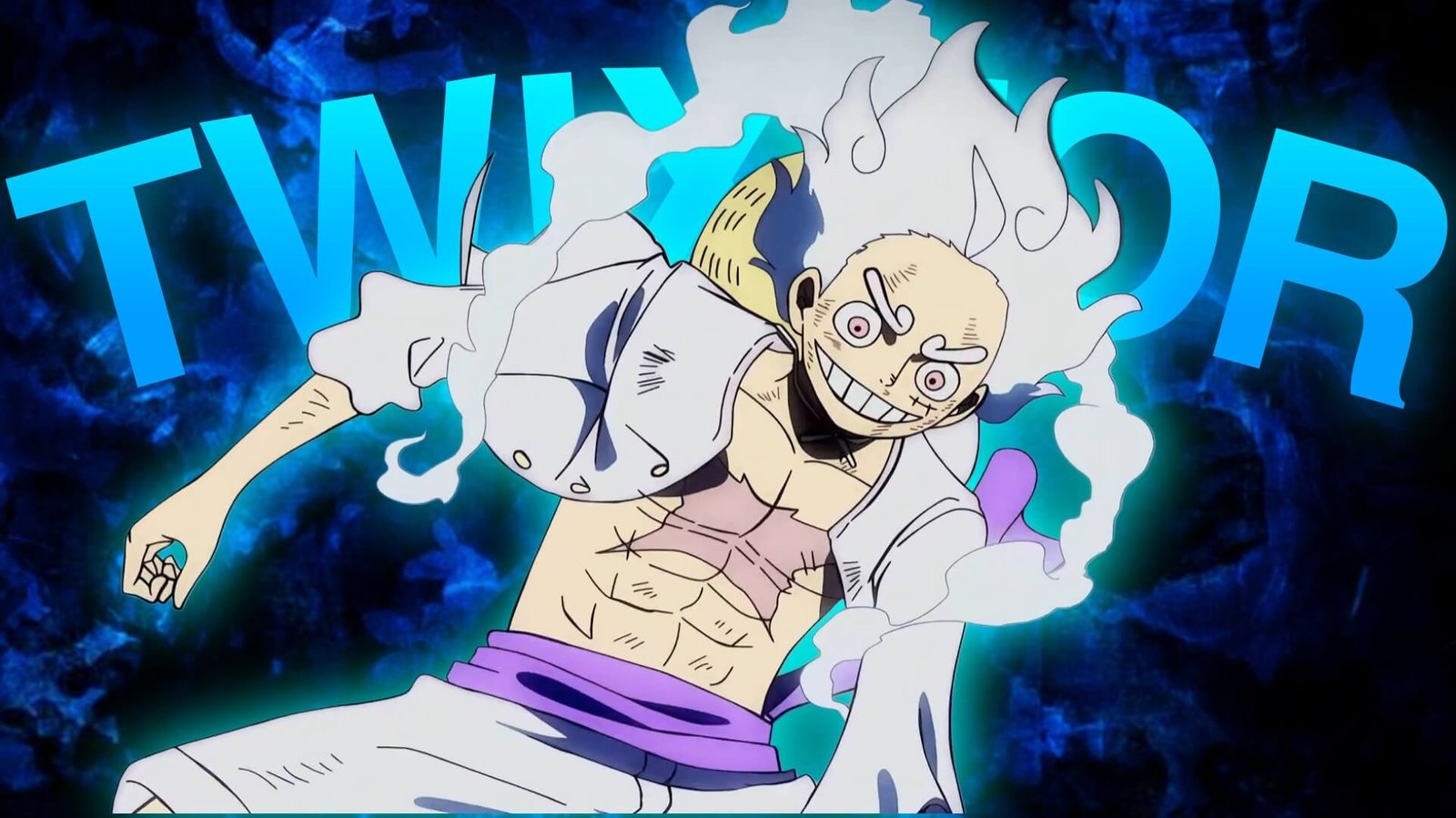
Gear 5 Luffy vs Kaido Clip: Best One Piece Fight Scenes for Edits
The Gear 5 Luffy vs Kaido Clip is one of the most visually distinctive sources for One Piece editing. The battle combines Luffy’s Gear 5 transformation, cartoon-like movement, powerful Haki attacks, Kaido’s dragon abilities, lightning effects, rapid combat, and dramatic close-ups.
Unlike a traditional anime fight, Gear 5 introduces exaggerated movement and unusual expressions that can give an edit a completely different rhythm. The contrast between Luffy’s playful fighting style and Kaido’s overwhelming presence also creates plenty of opportunities for creative transitions and speed changes.
Editorial Note: This article focuses on editing techniques, scene selection, and creative use of anime footage. It does not host or distribute copyrighted One Piece footage.
Why Gear 5 vs Kaido Is Excellent Editing Material
The fight offers a combination of fast action and visually unusual moments.
A useful Gear 5 Luffy vs Kaido Clip collection can include:
- Gear 5 transformation
- Luffy close-ups
- Kaido close-ups
- Dragon form shots
- Haki effects
- Lightning
- Gear 5 movement
- Sword and weapon attacks
- Impact frames
- Airborne combat
- Character reactions
- Wide shots of the battlefield
This variety makes it possible to create anything from a short velocity edit to a longer cinematic fight montage.
Build the Edit Around the Gear 5 Transformation
The Gear 5 transformation is an obvious centerpiece, but it can be more effective when treated as a payoff rather than an opening shot.
Start with a short buildup:
Luffy close-up → battlefield → Kaido → tension → heartbeat/music buildup → Gear 5 reveal
Once the transformation arrives, increase the pace.
This structure creates a noticeable difference between the first and second halves of the edit.
For Gear 5 Luffy vs Kaido Clip edits, the transformation can act as the point where your color, speed, and music change.
Gear 5’s Unique Movement
Gear 5 gives editors unusual animation to work with.
Luffy’s exaggerated movements, stretching, bouncing, and unpredictable attacks can create interesting speed ramps.
Instead of treating every movement like a standard action shot, experiment with:
Slow anticipation → sudden acceleration → exaggerated movement → impact → quick slowdown
This can emphasize the unconventional nature of Gear 5.
Avoid adding too many artificial effects because the animation itself already provides unusual visual movement.
Kaido’s Dragon Form
Kaido’s dragon sequences offer a completely different visual scale.
The enormous dragon form can be used as an establishing shot before returning to Luffy’s close-range combat.
A possible sequence is:
Dragon wide shot → Kaido close-up → attack → Luffy reaction → Gear 5 movement
These larger shots can also provide breathing room between faster sections of the edit.
Haki and Lightning Effects
Haki and lightning provide natural visual peaks.
You can synchronize these moments with music drops or impact sounds.
For example:
Luffy stance → Haki buildup → lightning → attack → impact
Keep the transition relatively clean.
Adding several additional flashes or overlays on top of existing lightning can make the frame difficult to read.
Creating a Gear 5 Velocity Edit
The battle has plenty of movement for velocity editing, but the unusual animation requires careful timing.
Slow Sections
Use for:
- Gear 5 close-ups
- Character reactions
- Transformation buildup
- Haki preparation
- Kaido reveals
Normal Sections
Use for:
- Dialogue
- Movement
- Character positioning
- Environmental shots
Fast Sections
Use for:
- Punches
- Dashes
- Haki attacks
- Impact moments
- Rapid Gear 5 movements
A useful pattern is:
Slow → acceleration → fast attack → impact → slowdown
This gives the viewer a clear visual rhythm.
Twixtor Tips for Gear 5
Twixtor can be useful for selected slow-motion sections, but Gear 5’s exaggerated animation can make frame interpolation challenging.
Pay attention to:
- Luffy’s stretched body
- Arms and legs
- Hair
- Clothing
- Lightning
- Smoke
- Kaido’s dragon body
- Fast camera movement
If the interpolation produces warping or unwanted artifacts, shorten the Twixtor section or use the original speed.
For a Gear 5 Luffy vs Kaido Clip, clean movement is more important than forcing every shot into slow motion.
Music for Luffy vs Kaido Edits
The unusual personality of Gear 5 allows for several music styles.
Cinematic
Good for transformation buildup and major battle moments.
Aggressive
Works well with Haki attacks and fast combat.
Phonk
Useful for short-form velocity edits.
Electronic
Can complement rapid speed changes and beat synchronization.
Orchestral
Useful for large-scale Kaido scenes and dramatic moments.
You can also use sound design to emphasize punches, impacts, lightning, and sudden movement.
Color Grading Gear 5 Footage
Gear 5 contains bright and energetic visuals, so the grade should preserve the original animation.
Useful adjustments include:
- Contrast
- Exposure
- Curves
- Highlights
- Shadows
- Saturation
- Sharpening
Avoid pushing the saturation too far.
Bright areas can quickly become overexposed, especially around lightning and other strong effects.
A balanced grade can keep Luffy’s Gear 5 visuals bright while maintaining enough detail in Kaido’s darker sections.
Transition Ideas
Lightning Cut
Use a lightning flash to hide a transition between two attacks.
Stretch Match Cut
Match the direction of Luffy’s exaggerated movement with the next clip.
Impact Cut
Cut directly on a punch or major attack.
Dragon-to-Luffy Transition
Move from Kaido’s large-scale dragon shot into a close-up of Luffy.
Speed Ramp Transition
Accelerate through one movement and cut at its fastest point.
These techniques can make Gear 5 Luffy vs Kaido Clip sequences feel connected instead of looking like a collection of unrelated shots.
Creating a Luffy-Focused Edit
A Luffy-focused edit can follow his progression through the battle.
Try:
Luffy close-up → Gear 5 buildup → transformation → playful movement → Haki attack → major impact → final pose
Keep Kaido’s shots short and use them mainly to establish the opponent.
Creating a Kaido-Focused Edit
For a Kaido edit, focus on scale and power.
Use:
Dragon form → close-up → attack → destruction → Luffy reaction → Kaido movement → final shot
Darker grading and heavier sound design can emphasize the intimidating side of the character.
Creating a Gear 5 vs Kaido Edit
For a balanced fight edit, alternate between both characters.
A simple structure is:
Kaido → Luffy → Kaido attack → Luffy counter → Gear 5 → Haki → clash → final impact
This creates a back-and-forth rhythm and keeps the fight feeling competitive.
Organizing Your Clips
If you are organizing footage you have the legal right to use, separate your material into categories.
Luffy
- Close-ups
- Gear 5
- Punches
- Haki
- Movement
- Reactions
Kaido
- Dragon form
- Close-ups
- Attacks
- Haki
- Reactions
Battle
- Clashes
- Impact shots
- Wide shots
- Lightning
- Environmental footage
Transformation
- Buildup
- Gear 5 reveal
- Aura
- Movement
- Aftermath
This organization makes it easier to create multiple edit styles from the same source material.
Common Editing Mistakes
When working with Gear 5 Luffy vs Kaido Clip footage, avoid overwhelming the animation with unnecessary effects.
Common mistakes include:
- Excessive Twixtor
- Too many flashes
- Overusing glow
- Heavy camera shake
- Excessive sharpening
- Oversaturated colors
- Random transitions
- Making every section extremely fast
- Slowing complex Gear 5 movement too aggressively
- Covering important animation with overlays
Gear 5 is already visually unusual, so clean timing and thoughtful effects can often produce a stronger result.
FAQ
What is the Gear 5 Luffy vs Kaido Clip?
The Gear 5 Luffy vs Kaido Clip refers to footage from Luffy’s Gear 5 battle against Kaido in One Piece, used as source material for creative edits when the editor has the appropriate rights to use the footage.
Is Gear 5 good for velocity edits?
Yes. Gear 5 includes rapid movement, exaggerated attacks, Haki effects, and strong impact moments that can work well with controlled velocity editing.
Can I use Twixtor on Gear 5 footage?
Yes, but select your shots carefully. Complex stretching, smoke, lightning, and fast movement can sometimes create interpolation artifacts.
What music works for Gear 5 edits?
Cinematic, electronic, aggressive, phonk, and orchestral tracks can all work depending on the desired mood.
What effects work well with Gear 5?
Speed ramps, motion blur, subtle glow, impact effects, camera movement, and controlled color grading can complement the animation.
Can I create a Kaido-focused version?
Yes. Kaido’s dragon form, attacks, close-ups, and large-scale movements provide enough material for a separate character-focused edit.
Final Thoughts
The Gear 5 Luffy vs Kaido Clip offers an unusual combination of comedy, action, powerful Haki, dramatic transformations, and large-scale animation. That makes the fight especially flexible for editors.
For a velocity edit, focus on clear movements and impact points rather than slowing every shot. For a cinematic version, build toward the Gear 5 transformation and use Kaido’s larger shots to create contrast.
Twixtor, speed ramps, music synchronization, controlled color grading, and clean transitions can help turn the footage into a polished One Piece edit while allowing the original animation to remain the main visual focus.
Disclaimer
This article is for editing inspiration and informational purposes only. One Piece, Monkey D. Luffy, Kaido, Gear 5, and related anime footage are protected by their respective copyright holders. This site does not host or distribute copyrighted footage. Use footage you have the legal right or permission to edit and follow applicable copyright and platform policies.

Get Exclusive CC & Quality Setting Here : https://payhip.com/QualityCCLab